Account & support
How to manage your account and get support
Open Account to manage sign-in and supported settings. The public Support form is available without logging in.
Step by step
Open Account from the bottom navigation.
Check whether you are using guest access or a registered account; some sharing features need registration.
Use the account screen’s current sign-in, registration or recovery options if needed.
Review the settings available to your device. Android-only security options may not appear in a browser.
For privacy information or account deletion, use the published account pages.
Open Frequently Asked Questions in the app or send a question through the public Support form.
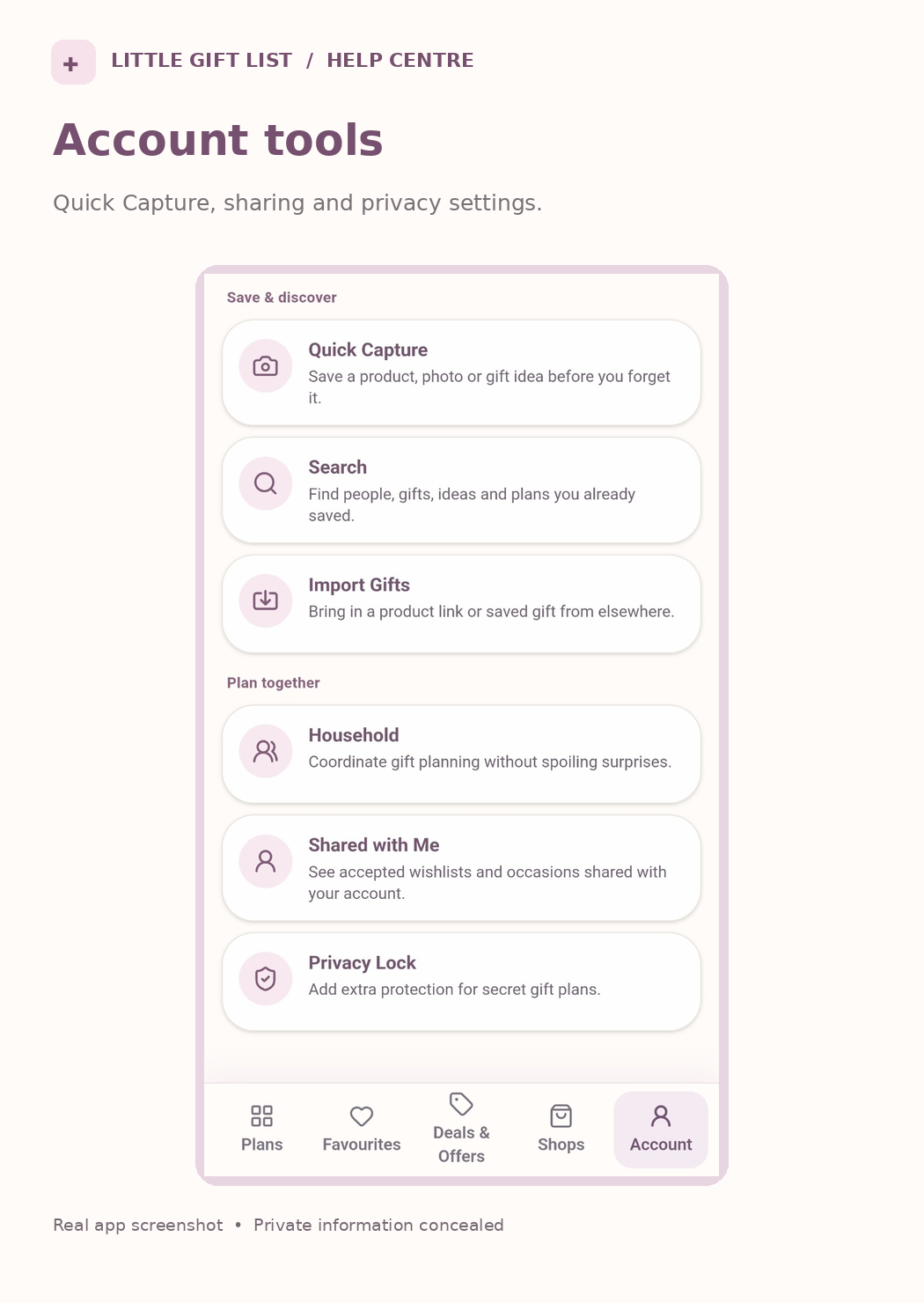
What you should see
Your account controls remain in Account. A submitted support request will show its own confirmation.
If it doesn't work
Help tip 1
If a registration or recovery email does not arrive, check the address and junk folder before trying the support form.
Help tip 2
Do not assume that a guest list is synchronised to other devices.
Help tip 3
Sharing invitations need a registered account; signed-out recipients cannot redeem them.
Ready to try it?
Contact SupportPrivate planning pages may ask you to sign in or use your existing guest session.
Still need a hand?
Tell us what you were trying to do. You can send a support request without signing in.
Contact support